User Guide
LibTask is a desktop application for librarians to manage book loans and requests by patrons. It is specially made to improve the overall efficiency of librarians when processing book loans and requests, helping them to complete their daily tasks quickly. LibTask is optimized for use via a Command Line Interface (CLI) while still having the benefits of a Graphical User Interface (GUI) so that librarians who prefer typing can get their tasks done faster than traditional GUI apps.
- 1. Introduction
- 2. Quick start
-
3. Features
- 3.1. General Features
- 3.2. Patron Features
-
3.3. Book Features
- 3.3.1. Adding a book:
book add - 3.3.2. Listing all books :
book list - 3.3.3. Finding books :
book find - 3.3.4. Editing a book :
book edit - 3.3.5. Deleting a book :
book delete - 3.3.6. Borrowing a book :
borrow - 3.3.7. Returning a book :
return - 3.3.8. Requesting a book :
book request - 3.3.9. Listing all books related to a patron :
book related
- 3.3.1. Adding a book:
- 4. FAQ
- 5. Command summary
- 6. Appendix
- 7. Glossary
1. Introduction
1.1. Welcome to LibTask
As a school librarian of a large library, you may already have your own desktop library software. However, existing library software is GUI-based and slow to work with. If you prefer to work with CLI commands efficiently while still having the benefits of aesthetic displays, then LibTask is designed just for you! LibTask provides you with a well-packaged system of commands for managing book loans and book requests by your patrons. The system also maintains two independent lists of books and patrons, allowing you to perform queries more efficiently.
1.2. About the User Guide
The purpose of this guide is to explain to you how to use LibTask and to allow you to have an enjoyable experience. It explains the features and commands compatible with LibTask. It is also structured in a way to let you easily navigate to relevant sections.
Take note of the following symbols that are used in this document:
| Icon | Explanation |
|---|---|
 |
This symbol is used to highlight important information. |
 |
This symbol is used to warn users of actions that might erase LibTask’s data. |
1.3. Navigating the User Guide
For help with installing and understanding LibTask’s GUI, you can head over to our Quick start section.
For the full documentation of each feature, you can refer to our Features section.
For a list of frequently asked questions about LibTask, you can refer to our FAQ section.
If you are an advanced user, you can refer to our Command summary section.
2. Quick start
2.1. Installation
-
Ensure you have Java
11or above installed in your Computer. You can follow this guide to download and install java. -
Download the latest
libtask.jarfrom here. -
Copy the file to the folder you want to use as the home folder for your LibTask.
-
Double-click the file to start the app. You can follow this guide if double-clicking doesn’t work.
-
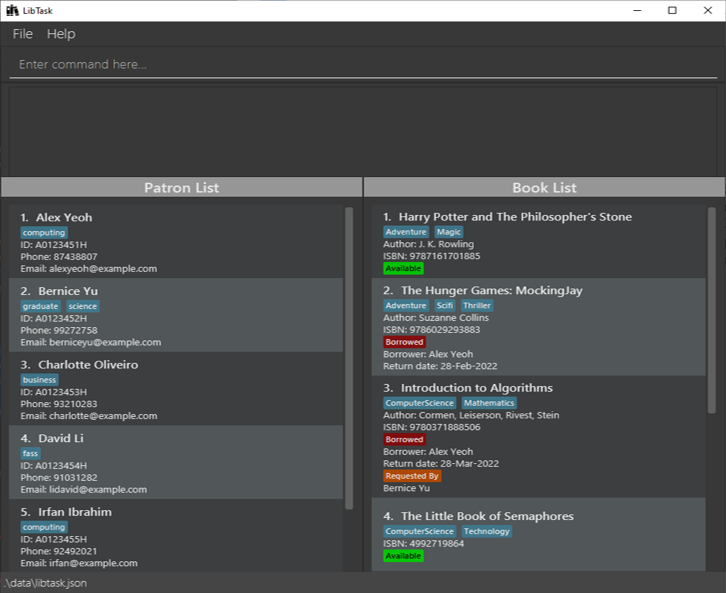
The GUI is similar to the one shown below and should appear in a few seconds.
-
You can refer to LibTask GUI Overview to understand what each component in the GUI does.
2.2. LibTask GUI Overview
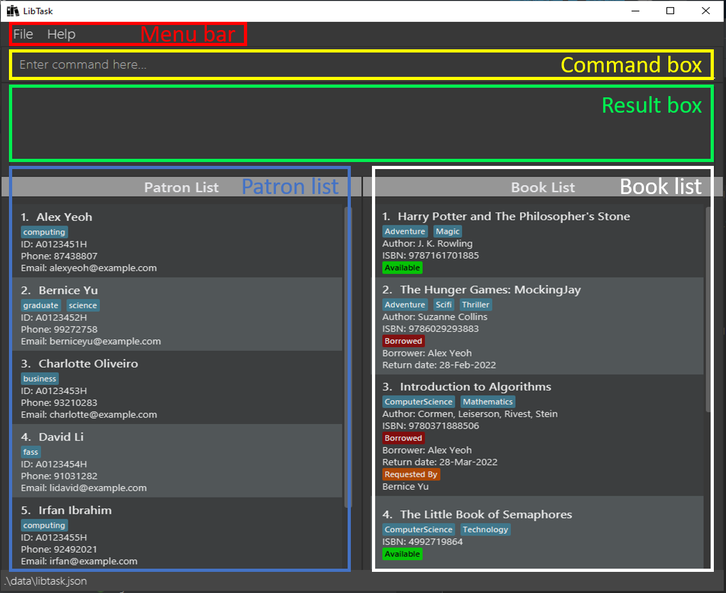
The various GUI components of LibTask are described in the picture below:
-
Menu bar: Menu buttons that you can click to exit LibTask or to open up the help window that contains a link to this user guide. -
Command box: You can type and enter commands to run in this box. -
Result box: You can view the results from running your commands in this box. -
Patron list: You can view the list of patrons with their details in this list. -
Book list: You can view the list of books with their details in this list.
2.3. Tutorial
Step 1: Adding patrons and books into LibTask
- Remove existing sample data from LibTask’s patron and book lists by entering the
clearcommand in the Command Box.
Warning:
Do not clear LibTask’s pre-existing data if you wish to test its commands. You are recommended to finish testing prior to doing this tutorial.
-
Add some patrons into LibTask’s patron list using the
patron addcommand.Below are some sample commands you can try running. You may continue adding more patrons while ensuring that the format of your command follows patron add.
patron add n/Alice s/A0123456H p/90123212 e/profA@u.nus.edu t/professor: Adds a patron namedAliceinto LibTask’s patron list.patron add n/Bob Miller s/A4468931X p/92940284 e/bobmiller@u.nus.edu: Adds a patron namedBob Millerinto LibTask’s patron list.patron add n/Harper Lee s/A0988773M p/91437496 e/harperlee@u.nus.edu: Adds a patron namedHarper Leeinto LibTask’s patron list. -
Add some books into LibTask’s book list using the
book addcommand.Below are some sample commands you can try running. You may continue adding more books while ensuring that the format of your command follows book add.
book add n/Harry Potter i/97888-69183-157 a/J.K.Rowling t/Thriller t/Magic: Adds a book titledHarry Potterinto LibTask’s book list.book add n/To Kill a Mockingbird i/97804-46310-789 a/Harper Lee t/Thriller: Adds a book titleTo Kill a Mockingbirdinto LibTask’s book list.book add n/The Da Vinci Code i/97803-85513-227 a/Dan Brown t/Crime: Adds a book titledThe Da Vinci Codeinto LibTask’s book list.
Step 2: Borrow some books
Harper Lee wishes to borrow “The Da Vinci Code”. You may create a book loan for her in one of the two following ways:
Notes:
-
The return dates of the above
borrowcommands may be changed. -
Learn more about the
borrowcommand here.
Method A:
-
Scroll through the patron list to find the index at which
Harper Leeis stored in LibTask. Let’s say this index number is 3. -
Scroll through the book list to find the index at which
The Da Vinci Codeis stored in LibTask. Let’s say this index number is 3. -
Enter command
borrow 3 3 25-Apr-2022in the Command box.Harper Leehas now borrowedThe Da Vinci Codewith a return date of 25th April 2022. You can confirm this by viewing the book’s status in the book list.
Method B:
-
Enter
patron find harper leein the Command box. Running this command will displayHarper Leefirst in the patron list. Learn more about the format of thepatron findcommand here. -
Enter
book find n/The Da Vinci Codein the Command box. Running this command will display all copies ofThe Da Vinci Codein the book list. Learn more about the format of thebook findcommand here. -
Enter command
borrow 1 1 25-Apr-2022in the Command box.Harper Leehas now borrowed the first copy ofThe Da Vinci Codewith a return date of 25th April 2022. You can confirm this by viewing the book’s status in the book list.
Step 3: Creating book requests
Bob Miller wishes to borrow “The Da Vinci Code”. However, the book seems to be borrowed by Harper Lee when the command
book find n/The Da Vinci Code is run. In this case and similar scenarios, you can create a book request in one of the
two following ways:
Notes:
-
Multiple patrons may request for
The Da Vinci Codein which case,Result boxwould remind you to notify all of them once the book is returned. -
Learn more about the request command here.
Method A:
-
List all patrons in the patron list by entering
patron list. Scroll through the patron list to find the index at whichBob Milleris stored in LibTask. Let’s say this index number is 2. -
List all books in the book list by entering
book list. Scroll through the book list to find the index at whichThe Da Vinci Codeis stored in LibTask. Let’s say this index number is 3. -
Enter command
book request 2 3in the Command Box.Bob Millerhas now requested forThe Da Vinci Code. You can confirm this by viewing the book’s status in the book list.
Method B:
-
Enter
patron find Bob Millerin the Command box. Running this command will displayBob Millerfirst in the patron list. Learn more about the format of thepatron findcommand here. -
Enter
book find n/The Da Vinci Codein the Command box. Running this command will display all copies ofThe Da Vinci Codein the book list. Learn more about the format of thebook findcommand here. -
Enter command
book request 1 1in the Command box.Bob Millerhas now requested forThe Da Vinci Code. You can confirm this by viewing the book’s status in the book list.
Subsequently, when Harper Lee returns “The Da Vinci Code”, you can find the book by entering book find n/The Da Vinci Code (which would result in it being displayed first) followed by return b/1 (more about the return command here). The Da Vinci Code is hence returned and the Result box would remind you to notify Bob Miller that the book is now available.
Congratulations! You have completed our tutorial! You can now head over to our Features section to learn more about our commands in greater detail.
3. Features
This section describes the features supported by LibTask and how to use them in general. Details of some commands may vary as stated in their respective sections.
Notes about the command format:
-
Words in
UPPER_CASEare the parameters to be supplied by the user.
e.g. inpatron delete INDEX,INDEXis a parameter which the user can enter and can be used aspatron delete 1. -
Items in square brackets are optional.
e.g.patron add n/NAME s/ID p/PHONE e/EMAIL [t/TAG]…can be used aspatron add n/John s/A0123456A p/93231222 e/e03482@u.nus.edu t/studentor aspatron add n/John s/A0123456A p/93231222 e/e03482@u.nus.edu. -
Items with
… after them can be used multiple times including zero times.
e.g.[t/TAG]…can be used ast/friendort/friend t/familyetc. -
Parameters can be in any order.
e.g. if the command specifiesn/NAME p/PHONE_NUMBER,p/PHONE_NUMBER n/NAMEis also acceptable. -
Extraneous parameters for commands that do not take in parameters (such as
help,patron list,book list,exitandclear) will be ignored.
e.g.help 123will be interpreted ashelp.
3.1. General Features
This section describes features users can use to navigate through LibTask.
3.1.1. Viewing help : help
Opens a help window explaining how to access LibTask’s user guide.

Format: help
3.1.2. Clearing all entries : clear
Warning:
Do not clear LibTask’s pre-existing data if you wish to test its commands.
Clears all patrons and books from LibTask’s patron and book lists.
Format: clear
3.1.3. Exiting LibTask : exit
Exits the program.
Format: exit
3.1.4. Retrieving previous command: u
Retrieves the previous command entered by the user back to the command box.
Format: u
- Loads your previous successfully entered commands back to the command box so you can view and rerun it.
- Only allows each command to be viewed once.
3.1.5. Saving LibTask’s data
LibTask’s data is saved in the hard disk automatically after any command that changes it. There is no need to save manually.
3.2. Patron Features
This section describes features users can use to interact with LibTask’s patron list.
3.2.1. Adding a patron: patron add
Adds a patron to LibTask’s patron list.
Format: patron add n/NAME s/ID p/PHONE e/EMAIL [t/TAG]…
Notes about the add command:
-
ID must be 9 characters in length. First character of ID should be ‘A’ and last character of ID should be a capital letter.
-
NAME can be a maximum of 40 characters and can only contain alphanumeric characters and spaces.
-
EMAIL can be a maximum of 50 characters.
-
TAG can only contain alphanumeric characters and cannot contain spaces.
-
You cannot add a patron with the same NAME, EMAIL or ID as another existing patron in the patron list.
Example:
To add a patron with the name John, id A0212828X, phone number 93231222, email e03482@u.nus.edu and tag student,
you can enter the following command:
patron add n/John s/A0212828X p/93231222 e/e03482@u.nus.edu t/student
3.2.2. Listing all patrons : patron list
To show a list of all patrons in LibTask, you can enter the list command shown below.
Format: patron list
Notes about the list command:
- If all patrons are already listed, the command will still show a success message as having listed all patrons, but the patrons listed will have no visual change.
3.2.3. Finding patrons: patron find
To find patrons in LibTask based on patron name, you can enter the find command with the format shown below.
Format: patron find KEYWORD [KEYWORD]…
Notes about the find command:
-
The search is case-insensitive. e.g.
hanswill matchHans -
The order of the keywords does not matter. e.g. results from the keyword
Hans Bowill match results of the keywordBo Hans -
Only the name is searched, and KEYWORD cannot be empty or contains only spaces.
-
Only full words will be matched. e.g. results from the keyword
Hanwill not match results from the keywordHans -
Patrons matching at least one part of the keyword will be returned. e.g. keyword
Hans Bowill return patrons with namesHans Gruber,Bo Yang
Example:
To find all patrons with names containing the keywords “alex” or “david”, you can enter the following command:
patron find alex david
3.2.4. Editing a patron : patron edit
To edit the details of a specific patron, you can enter the edit command with the format shown below.
Format: patron edit INDEX [n/NAME] [s/ID] [p/PHONE] [e/EMAIL] [t/TAG]…
Notes about the edit command:
-
Edits the patron at the specified
INDEX. The index refers to the index number shown in the displayed patron list. The index must be a positive integer 1, 2, 3, … and cannot exceed the largest index number in the displayed patron list. -
At least one of the optional fields must be provided.
-
Existing values will be updated to the input values.
-
When editing tags, the existing tags of the patron will be removed i.e. adding of tags is not cumulative.
-
You can remove all the patron’s tags by typing
t/without specifying any tags after it. -
You cannot edit a patron’s name, email or id to that of some other patron in LibTask.
Examples:
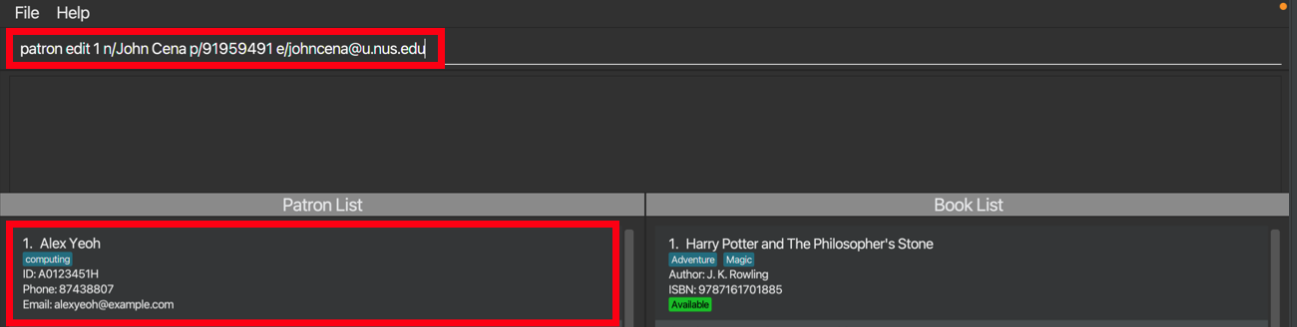
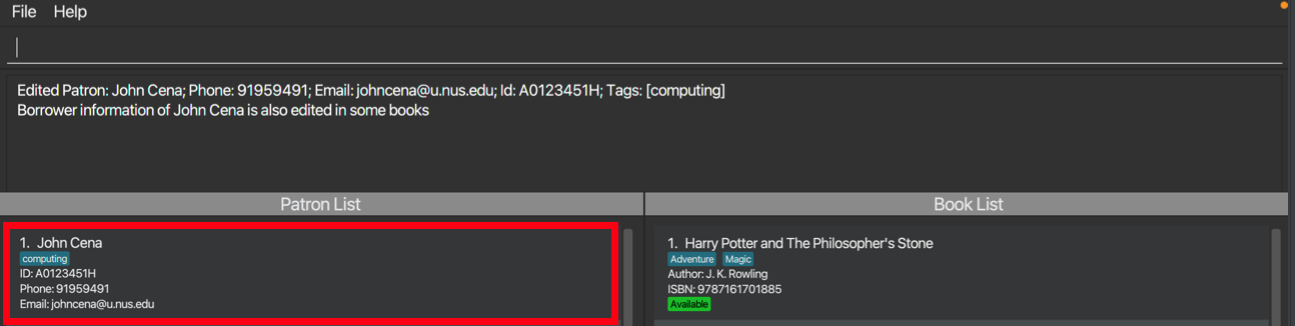
To edit the first patron’s name from Alex Yeoh to John Cena, its phone number from 87438807 to 91959491 and email from alexyeoh@example.com to johncena@u.nus.edu, you can enter the following command:
patron edit 1 n/John Cena p/91959491 e/johncena@u.nus.edu
Before entering the command, the first patron still has its original name, phone number and email.
After entering the command, the first patron has its name edited to John Cena, phone number edited to 91959491 and email edited to johncena@u.nus.edu
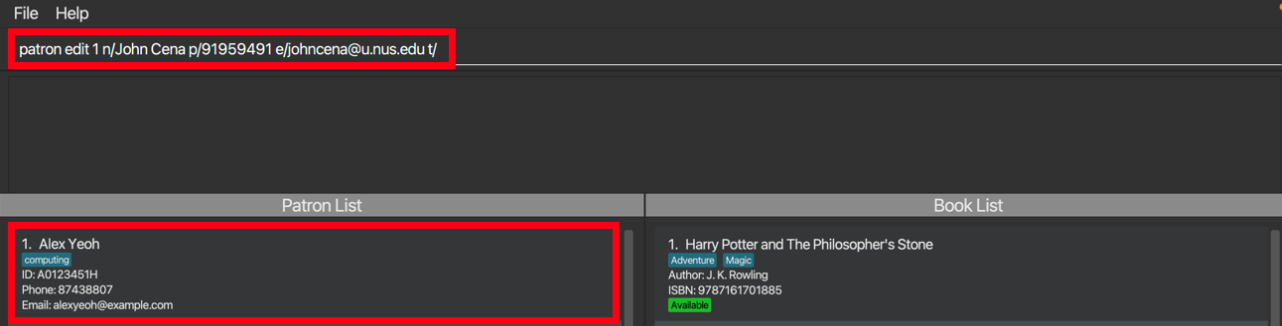
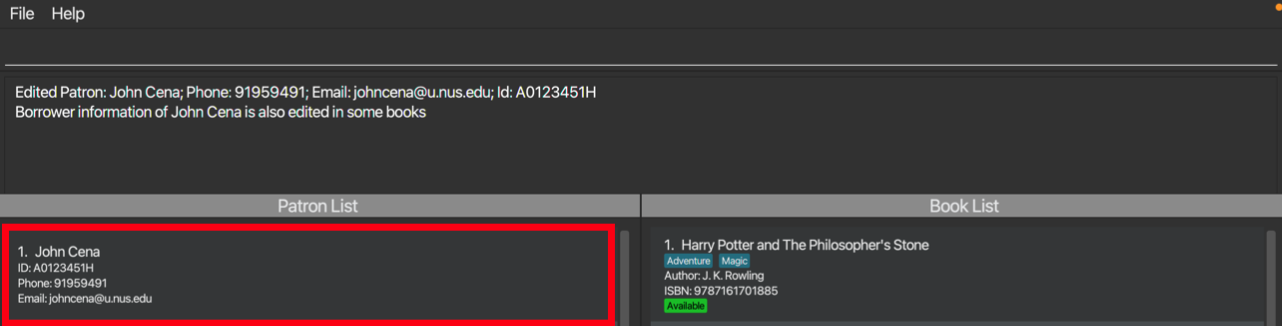
To remove all tags and edit the first patron’s name from Alex Yeoh to John Cena, its phone number from 87438807 to 91959491 and email from alexyeoh@example.com to johncena@u.nus.eduyou can enter the following command:
patron edit 1 n/John Cena p/91959491 e/johncena@u.nus.edu t/
Before entering the command, the first patron has different tags.
After entering the command, the first patron will have their tags removed.
3.2.5. Deleting a patron : patron delete
To delete a specific patron, you can enter the delete command with the format shown below.
Format: patron delete INDEX
Notes about the delete command:
-
Deletes the patron at the specified
INDEX. -
The index refers to the index number shown in the displayed patron list.
-
The index must be a positive integer 1, 2, 3, … and cannot exceed the largest index number in the displayed patron list.
Example:
To delete the second patron, you can enter the following command:
patron delete 2
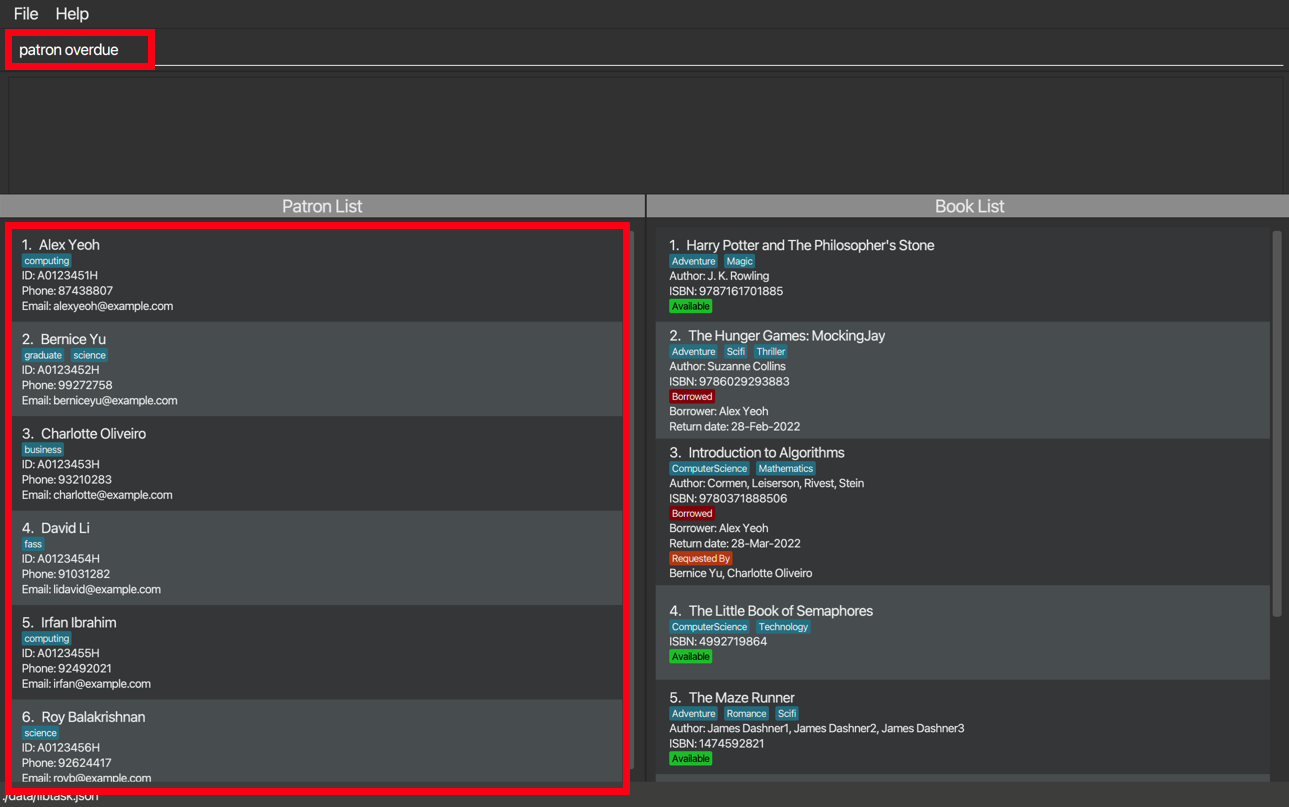
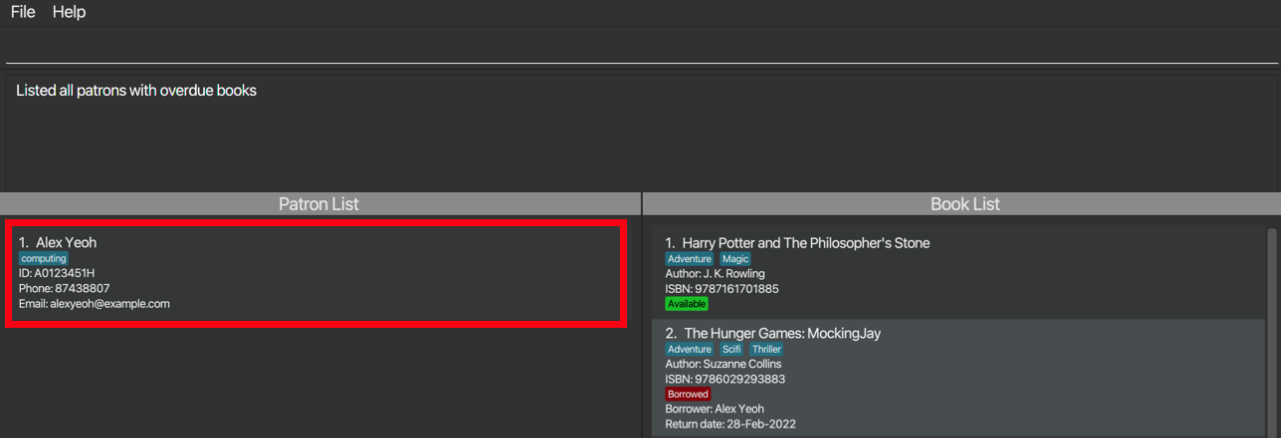
3.2.6. Listing all patrons with overdue books : patron overdue
To list all patrons with overdue books, you can enter the overdue command with the format shown below.
Format: patron overdue
Example:
Before entering the command, all patrons are displayed.
After entering the command, only patrons with overdue books are displayed.
3.3. Book Features
This section describes features users can use to interact with LibTask’s book list.
3.3.1. Adding a book: book add
Adds a book to LibTask’s book list.
Format: book add n/BOOK_NAME i/ISBN [a/AUTHOR] … [t/TAG] …
Notes about the add command:
-
BOOK_NAME must start and end with alphanumeric characters, and can only contain
'character,:character and alphanumeric characters. -
ISBN must be 10 or 13 digits in length, and contain only numbers with at most one
-character between consecutive numbers. If it is 13 digits long, it must start with 978 or 979. -
ISBN digits must have valid checksum. Details on calculating checksum can be found in this section.
-
AUTHOR must start with an alphanumeric character, and can only contain alphanumeric characters and
.character. -
TAG can only contain alphanumeric characters and cannot contain spaces.
-
You can add multiple copies of the same book with the same isbn. However, all books with the same isbn must also have the same name and written by the same authors. Comparison of book names and authors are case-insensitive and spacing insensitive.
-
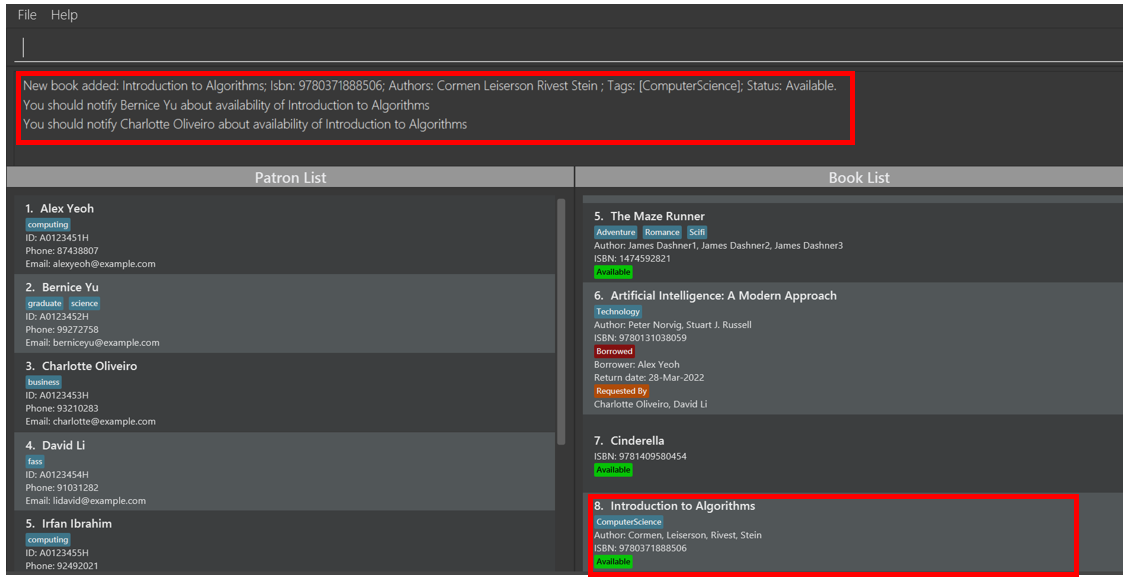
If books with the same isbn already exists, and is requested by some patrons, adding this book will also remove all requests for those books, and you will be reminded to notify patrons who are interested in this available book.
Example
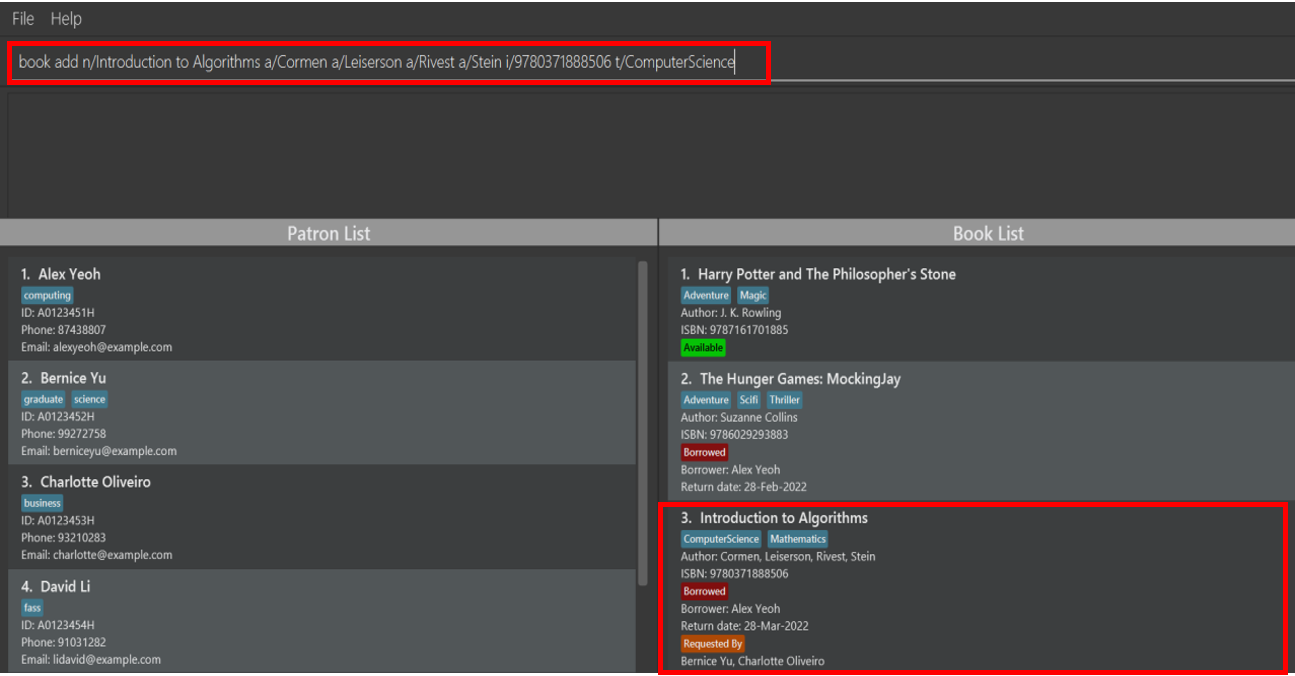
To add a book with the name Introduction to Algorithms, isbn 9780371888506, authors Cormen, Leiserson, Rivest and Stein, with a tag of ComputerScience, you can enter the following command:
book add n/Introduction to Algorithms a/Cormen a/Leiserson a/Rivest a/Stein i/9780371888506 t/ComputerScience
Before entering the command, a book with the same name already exists in LibTask. However, that copy is currently borrowed by Alex and requested by Bernice and Charlotte.
After entering the command, a new available copy of the book is added. You will also be reminded to notify Bernice and Charlotte about the availability of this book.
3.3.2. Listing all books : book list
To show a list of all books in LibTask, you can enter the list command with the format shown below.
Format: book list
Notes about the list command:
- If all books are already listed, the command will still show a success message as having listed all books, but the books listed will have no visual change.
3.3.3. Finding books : book find
To find books in LibTask based on book name, author or tags, you can enter the find command with the format shown below.
Format: book find [n/NAME] [t/TAG] [a/AUTHOR]
Notes about the find command:
-
Exactly one of the optional parameters must be specified, and can only be specified once.
-
All books with a tag, or author, or book name that contains the substring of the given query will be displayed in the book list. e.g.
book find t/will display all books with tags.
Examples:
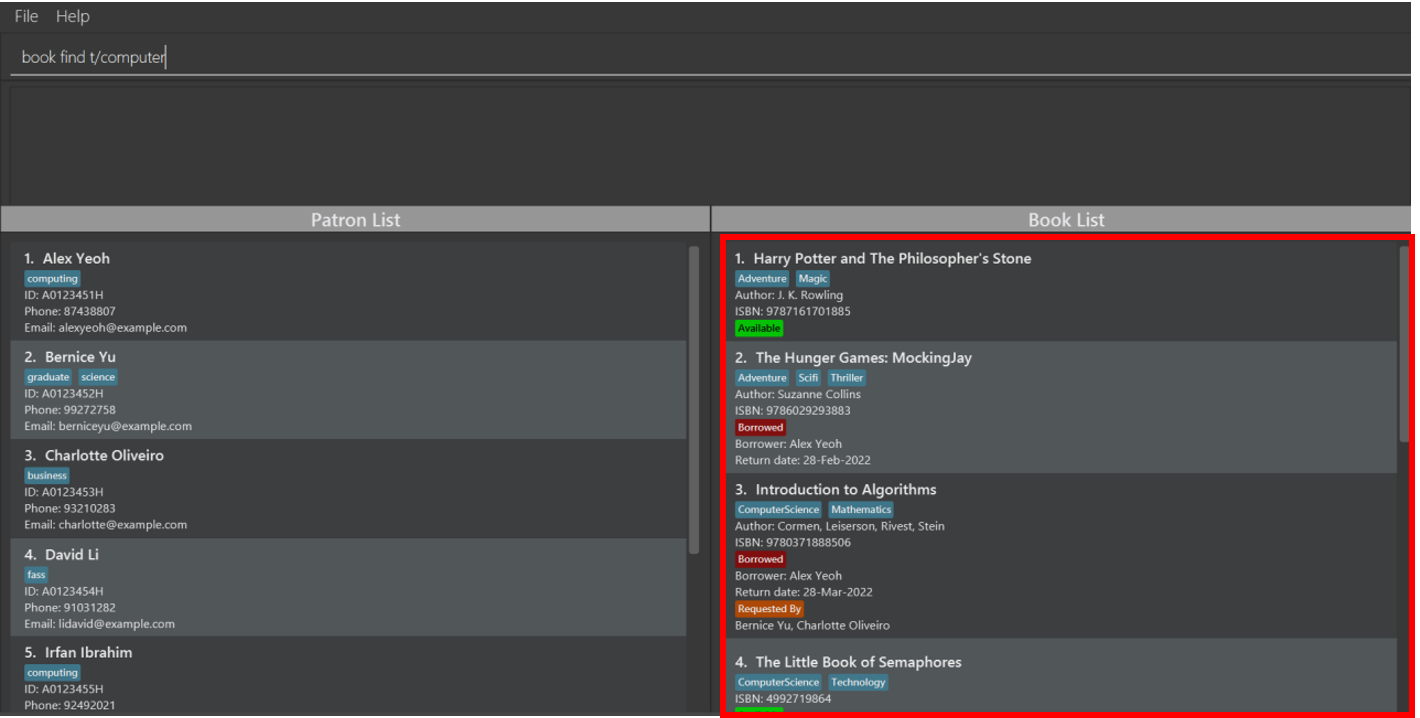
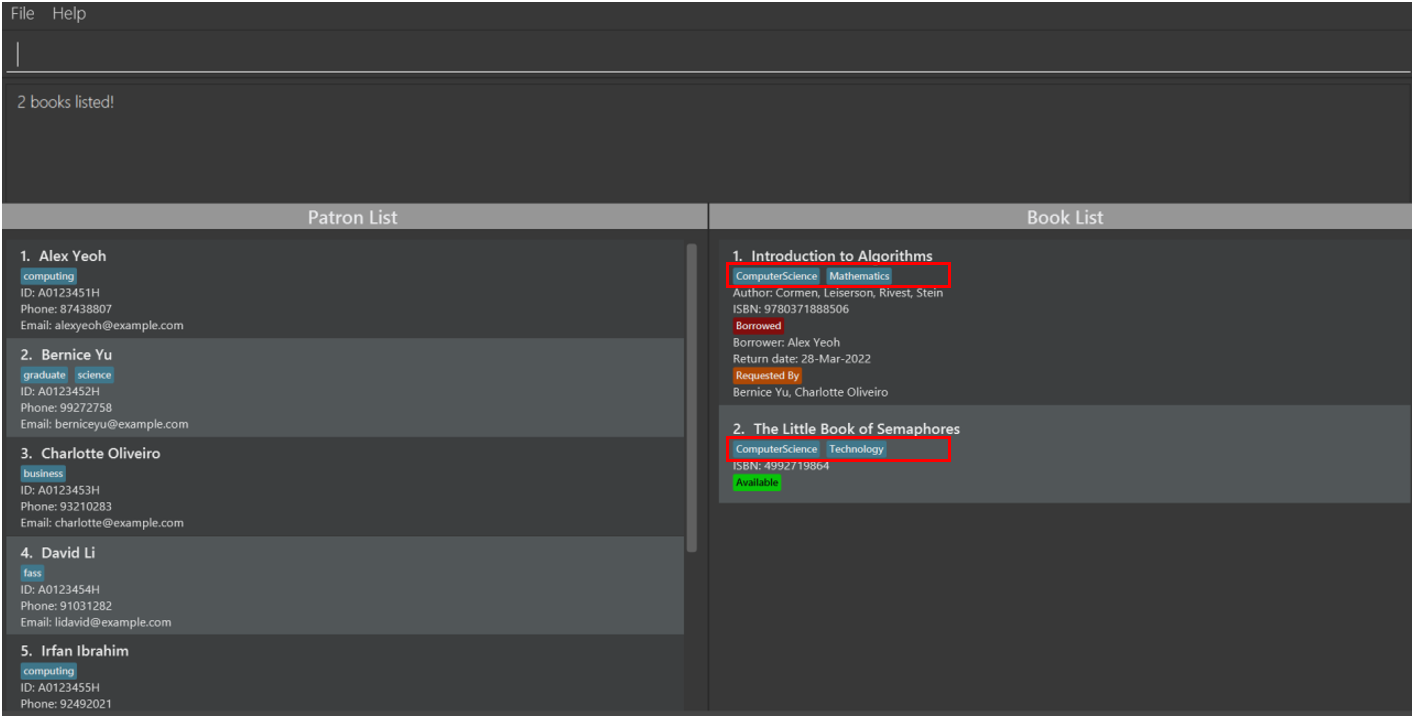
To find all books for computer science students, you can enter the following command:
book find t/computer
Before entering the command, all books are displayed.
After entering the command, only books that have a tag containing the keyword “computer” are displayed.
To find all books for with a book name containing the keyword Harry, you can enter the following command:
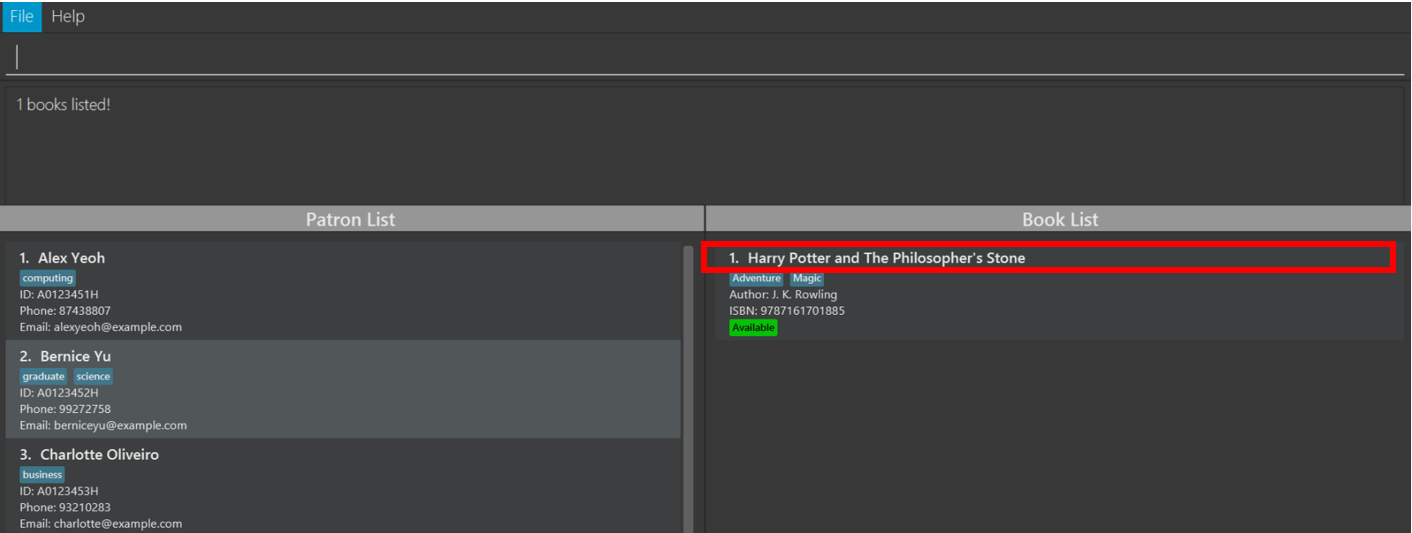
book find n/Harry
Before entering the command, all books are displayed.
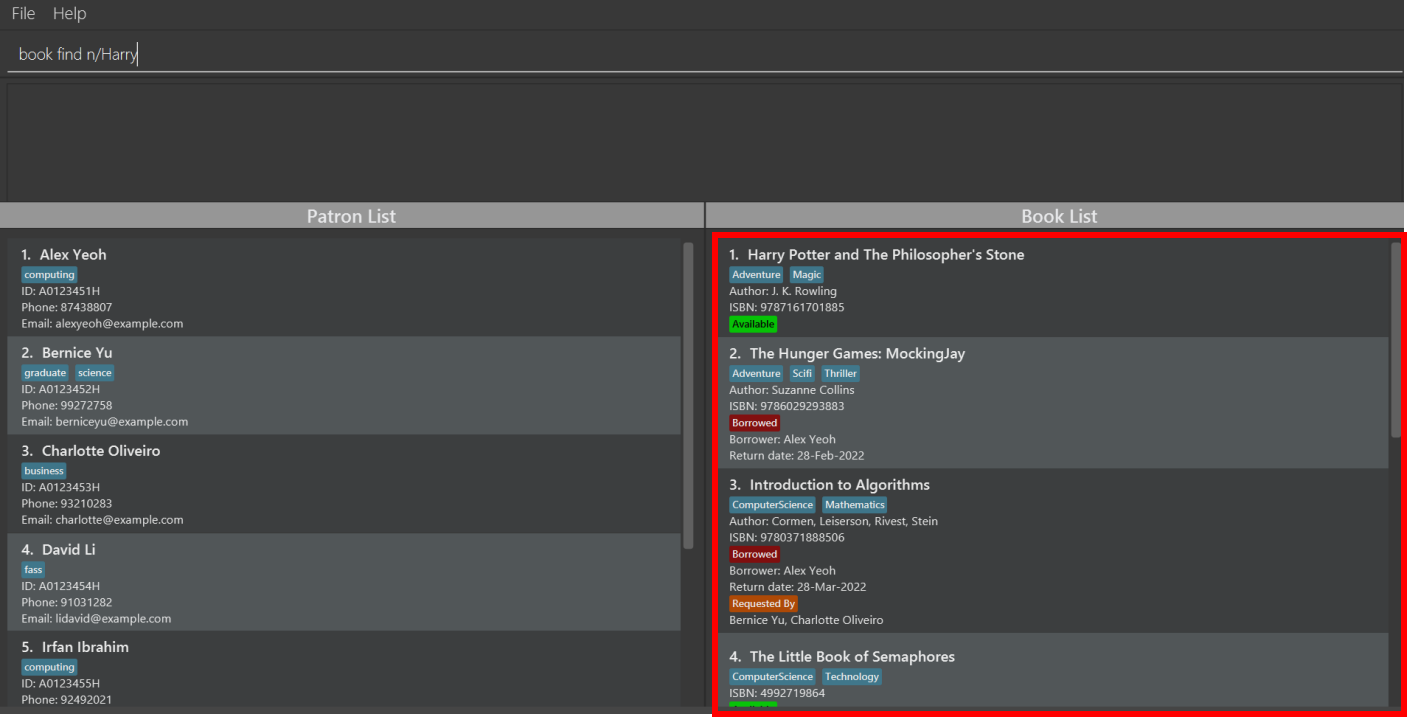
After entering the command, only one book which name contains Harry is displayed.
3.3.4. Editing a book : book edit
To edit the details of a specific book, you can enter the edit command with the format shown below.
Format: book edit INDEX [n/NAME] [i/ISBN] [a/AUTHOR] … [t/TAG] …
Notes about the edit command:
-
Edits the book at the specified
INDEX.INDEXrefers to the index number shown in the displayed book list. The index must be a positive integer 1, 2, 3, … and cannot exceed the largest index number in the displayed book list. -
At least one of the optional fields (NAME, ISBN, AUTHOR, TAG) must be provided.
-
Existing values will be updated to the input values.
-
When a book’s name, authors or isbn is changed, all copies of books with the same isbn will have their respective fields edited as well. This is because all books with the same isbn should have the same name and authors.
-
When editing tags or authors, the existing tags or authors of the book will be removed i.e. adding of tags and authors is not cumulative. However, if all tags are added in a single input, the multiple tags will be added.
-
You can remove all the book’s authors and tags by typing
a/ort/respectively without specifying any tags after it. -
You cannot edit a book’s isbn into a new isbn if the new isbn already belongs to another book in LibTask.
Examples:
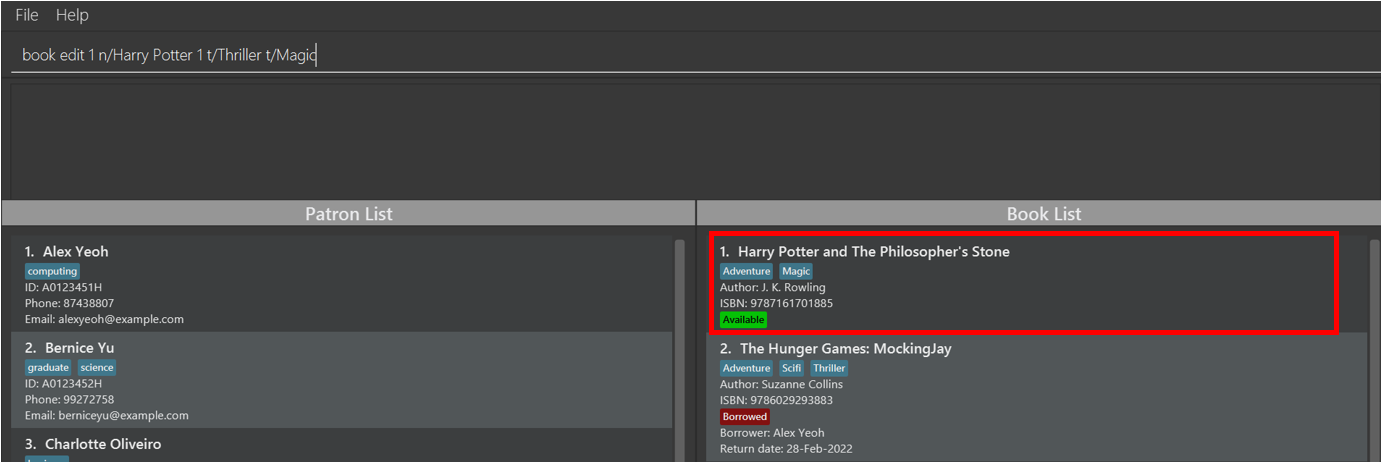
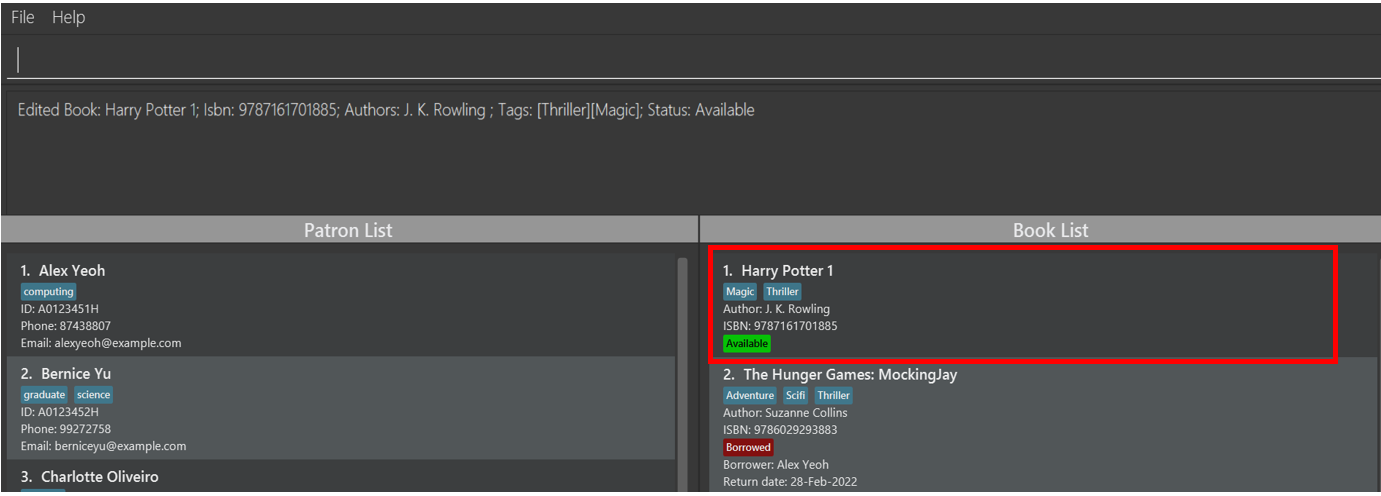
To edit the first book’s name from Harry Potter: Sorcerer's Stone to Harry Potter 1, and its tag to Thriller and Magic, you can enter the following command:
book edit 1 n/Harry Potter 1 t/Thriller t/Magic
Before entering the command, the first book still has its original name and tags.
After entering the command, the first book has its name edited to Harry Potter 1 and has tags Thriller and Magic
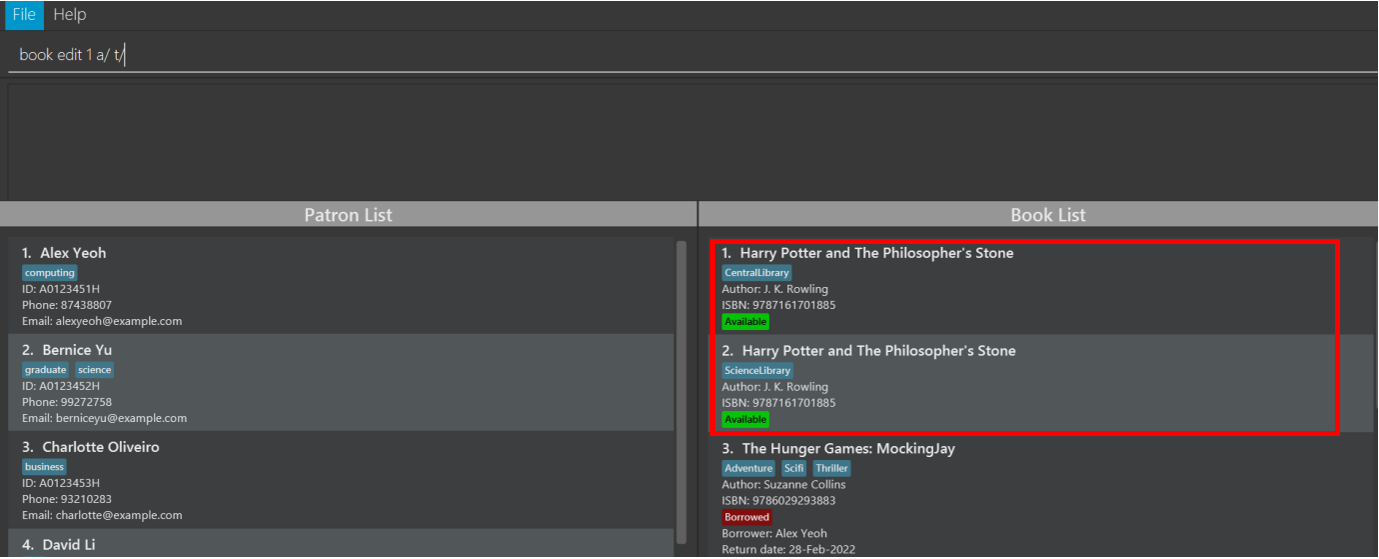
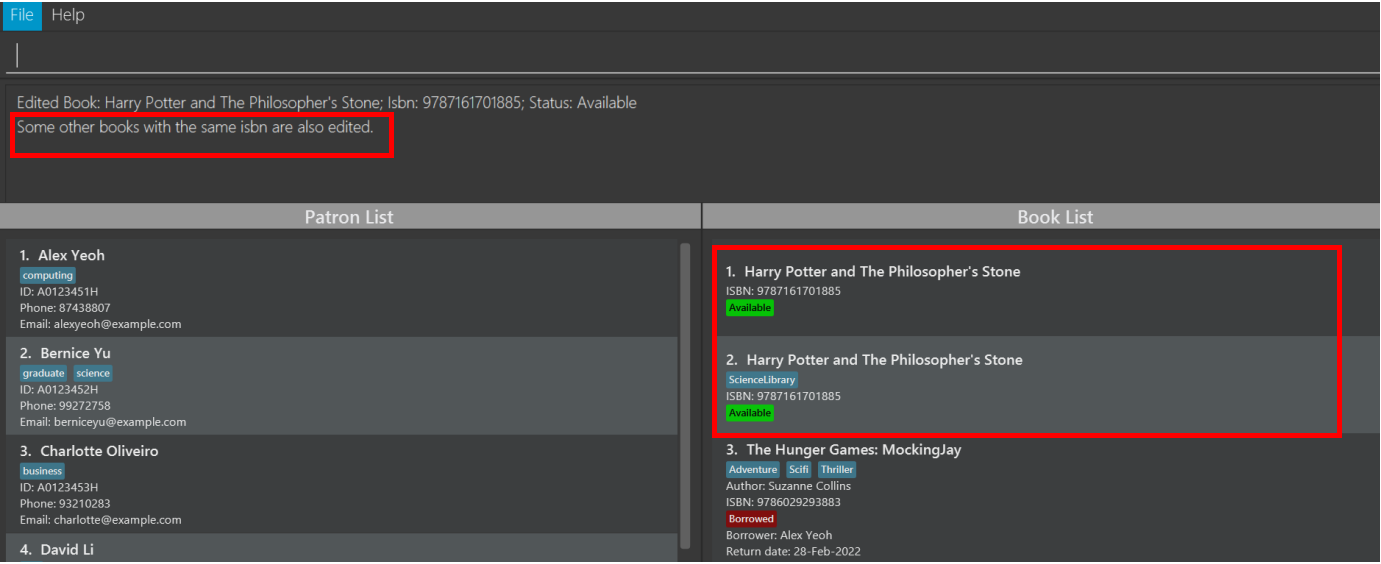
To remove all authors from and tags from the first book, you can enter the following command:
book edit 1 a/ t/
Before entering the command, there are two copies of Harry Potter and The Philosopher's Stone, both have different tags but has the same author J. K. Rowling.
After entering the command, both copies will have their author removed. However, only the copy at the first index will have its tag removed, because different book copies can have different tags.
3.3.5. Deleting a book : book delete
To delete a specific book, you can enter the delete command with the format shown below.
Format: book delete INDEX
Notes about the delete command:
-
Deletes the book at the specified
INDEX.INDEXrefers to the index number shown in the displayed book list. The index must be a positive integer 1, 2, 3, … and cannot exceed the largest index number in the displayed book list. -
You cannot delete a book that is borrowed. If you insist on deleting the book, you can first return the book.
Example:
To delete the first book, you can enter the following command:
book delete 1
3.3.6. Borrowing a book : borrow
To keep track that a specific patron is borrowing a specific book, you can enter the borrow command with the format shown below.
Format: borrow PATRON_INDEX BOOK_INDEX RETURN_DATE
Notes about the borrow command:
-
PATRON_INDEXrefers to the index number of a patron shown in the displayed patron list. -
BOOK_INDEXrefers to the index number of a book shown in the displayed book list. -
Both
PATRON_INDEXandBOOK_INDEXmust be a positive integer 1, 2, 3, … -
Both
PATRON_INDEXandBOOK_INDEXcannot exceed the largest index number in the displayed patron list or book list, respectively. -
RETURN_DATEmust be a valid date in dd-MMM-yyyy format (e.g. 20-May-2022) and must be later than the current date. -
A patron cannot borrow multiple copies of the same book with the same isbn.
-
A patron cannot borrow a book that is already borrowed by someone else.
Example:
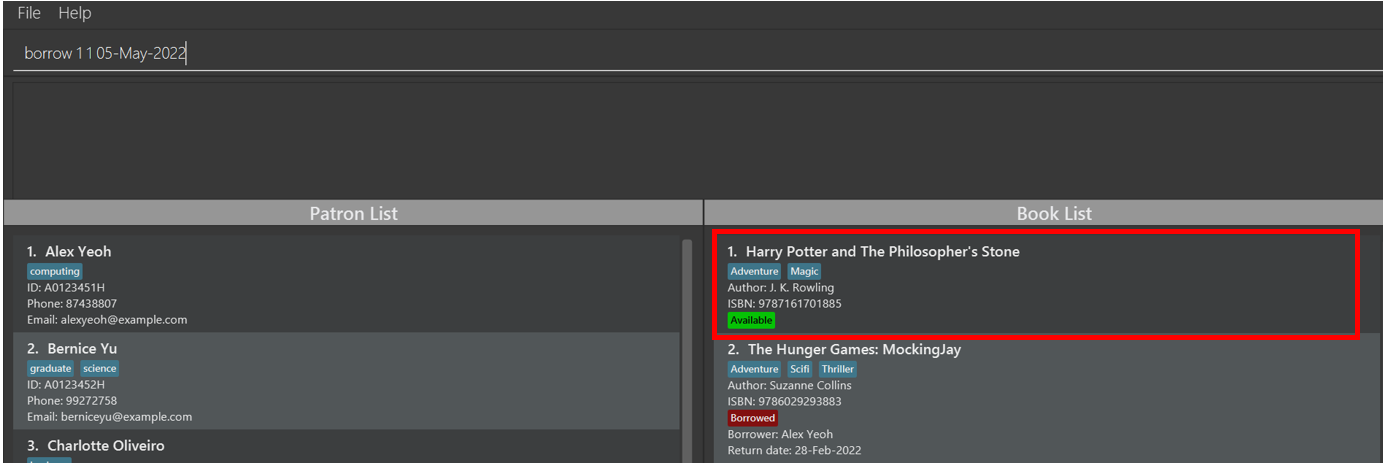
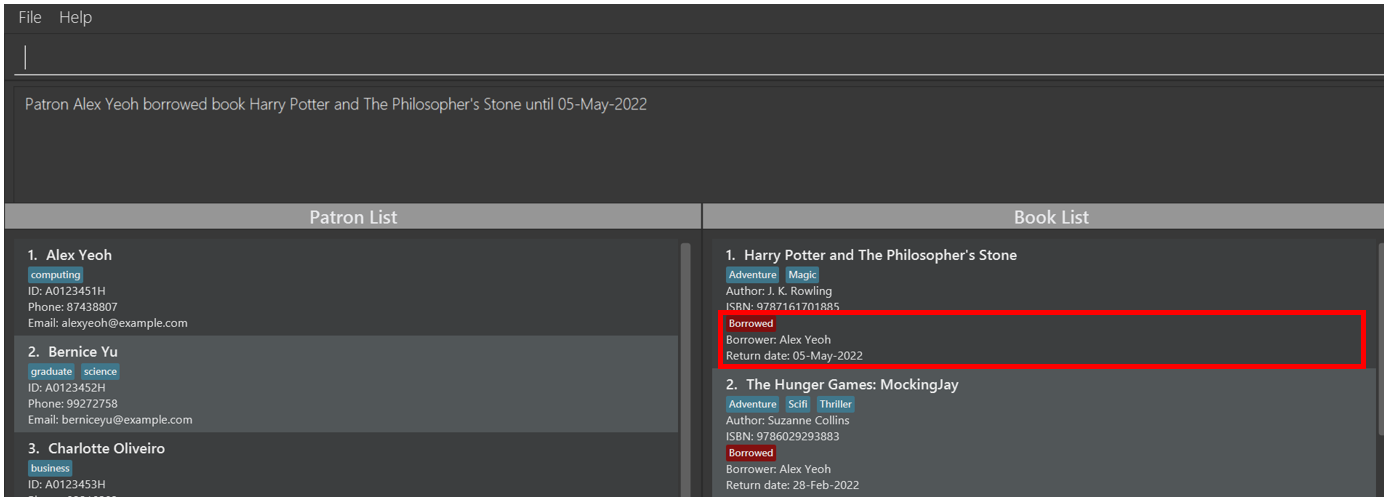
To keep track that the first patron is borrowing the first book until a return date of 5th May 2022, you can enter the following command:
borrow 1 1 05-May-2022
Before entering the command, the first book is available.
After entering the command, that first book is labelled as borrowed, and is borrowed by the first patron Alex Yeoh, until a return date of 05-May-2022.
3.3.7. Returning a book : return
To return a specific book, or to return all books by a specific patron, you can enter the return command with the format shown below.
Format: return PREFIX/INDEX
Notes about the return command:
-
PREFIXmust be eitherpfor patrons orbfor books. -
If
PREFIXisp,INDEXrefers to the index number of the patron who is returning books, as shown in the displayed patron list. -
If
PREFIXisb,INDEXrefers to the index number of the book to be returned, as shown in the displayed book list. -
INDEXmust be a positive integer 1, 2, 3, … and cannot exceed the largest index number in the displayed book list (if prefix isb) or patron list (if prefix isp). -
If there are patrons who requested to be notified about the availability of the returned books, you will be reminded to notify them. Subsequently, all requests for those books will be deleted automatically.
-
You cannot return a specific book if it is not borrowed
-
You cannot return all books by a patron if the patron did not borrow any books.
Examples:
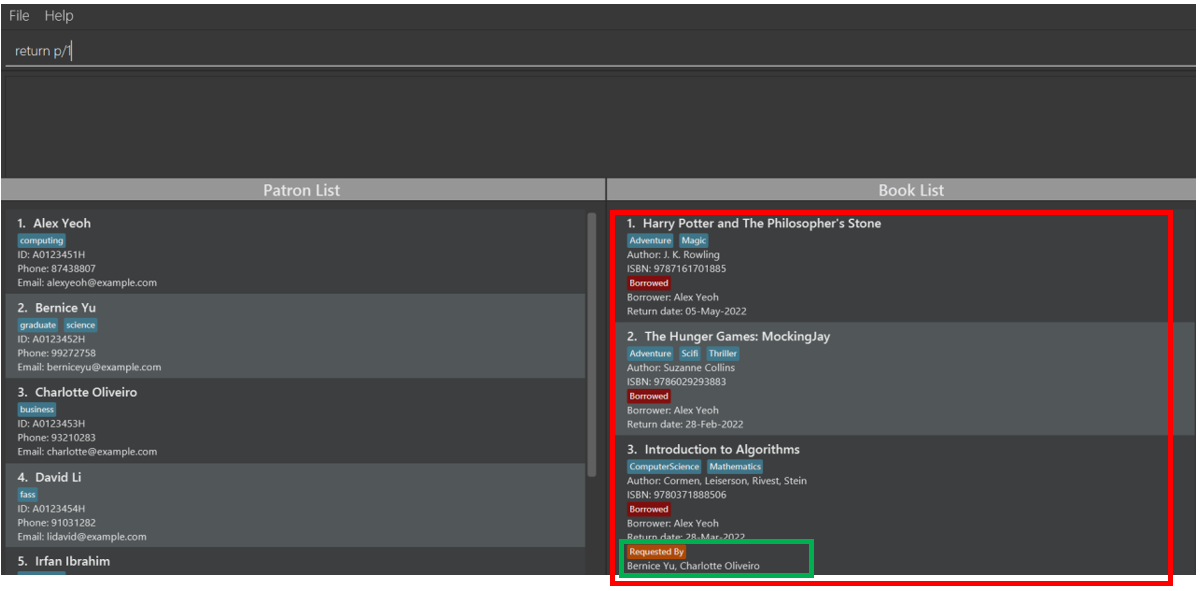
To return all books borrowed by the first patron, you can enter the following command:
return p/1
Before entering the command, there are three books borrowed by the first patron. There are also two patrons requesting to be notified when the third book becomes available.
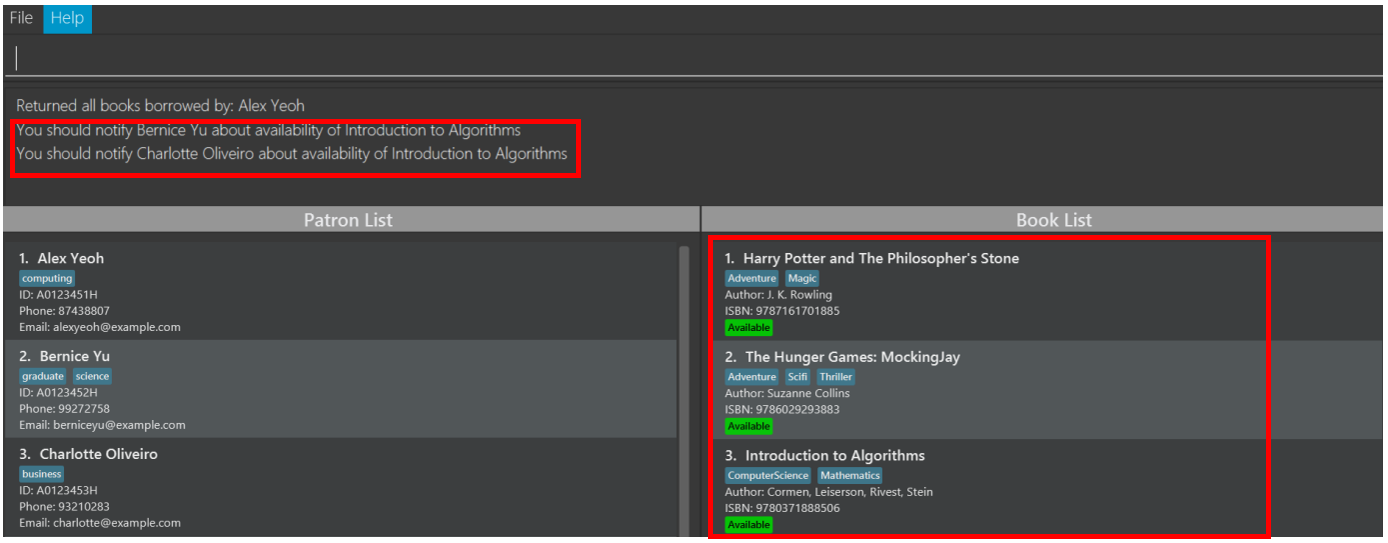
After entering the command, all three books borrowed by the first patron is returned. Furthermore, you are reminded to notify the two patrons who requested for the third book.
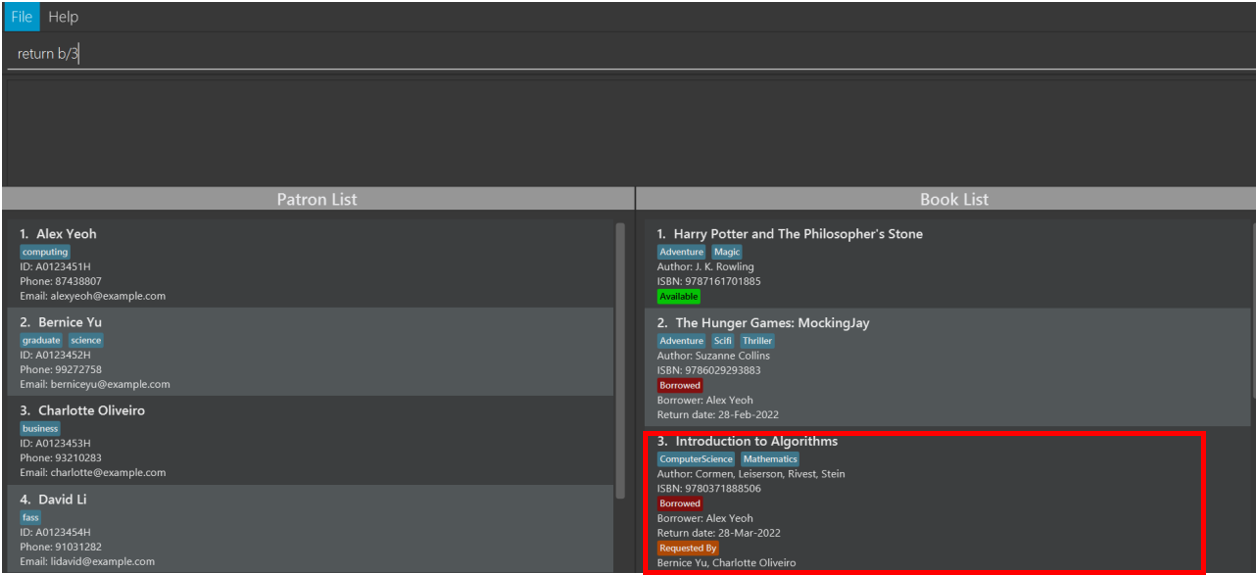
To return only the third book, you can enter the following command:
return b/3
Before entering the command, the third book is labelled as borrowed, and has two requesters requesting to be notified when it becomes available.
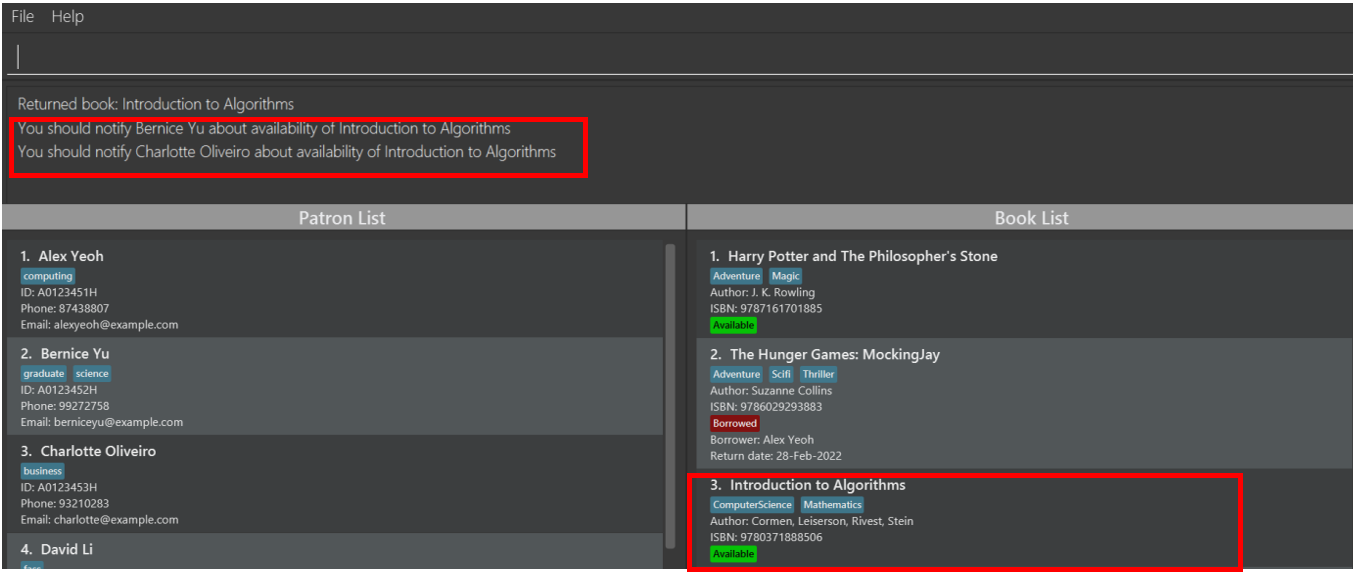
After entering the command, the third book becomes available. The two requesters are also removed as you are reminded to notify both of them about the availability of the returned book.
3.3.8. Requesting a book : book request
To keep track that a specific patron is requesting for a specific book, you can enter the request command with the format shown below.
Format: book request PATRON_INDEX BOOK_INDEX
Notes about the request command:
-
PATRON_INDEXrefers to the index number of the patron who is requesting for the book, as shown in the displayed patron list. -
BOOK_INDEXrefers to the index number of the book to be requested, as shown in the displayed book list. -
Both
PATRON_INDEXandBOOK_INDEXmust be a positive integer 1, 2, 3, … -
Both
PATRON_INDEXandBOOK_INDEXcannot exceed the largest index number in the displayed patron list or book list, respectively. -
Book requests are associated with books with the same isbn, not a book copy. For example, when patron Alex requests for the first book, LibTask recognizes that Alex is requesting for books with the same isbn as the first book.
-
A patron can only request for a book if all copies of the book is borrowed. This is because if there is an available copy of the book, you can let the patron borrow that copy without requesting for it.
-
A patron cannot request for the same book again if LibTask is still keeping track of his previous request.
-
A patron cannot request for a book if he/she is currently borrowing a copy of that book.
-
A book can have a maximum number of book requests equal to the number of books with the same isbn in LibTask. There is no need to have too many book requests because ultimately each copy of the book can only be borrowed by one patron.
Example:
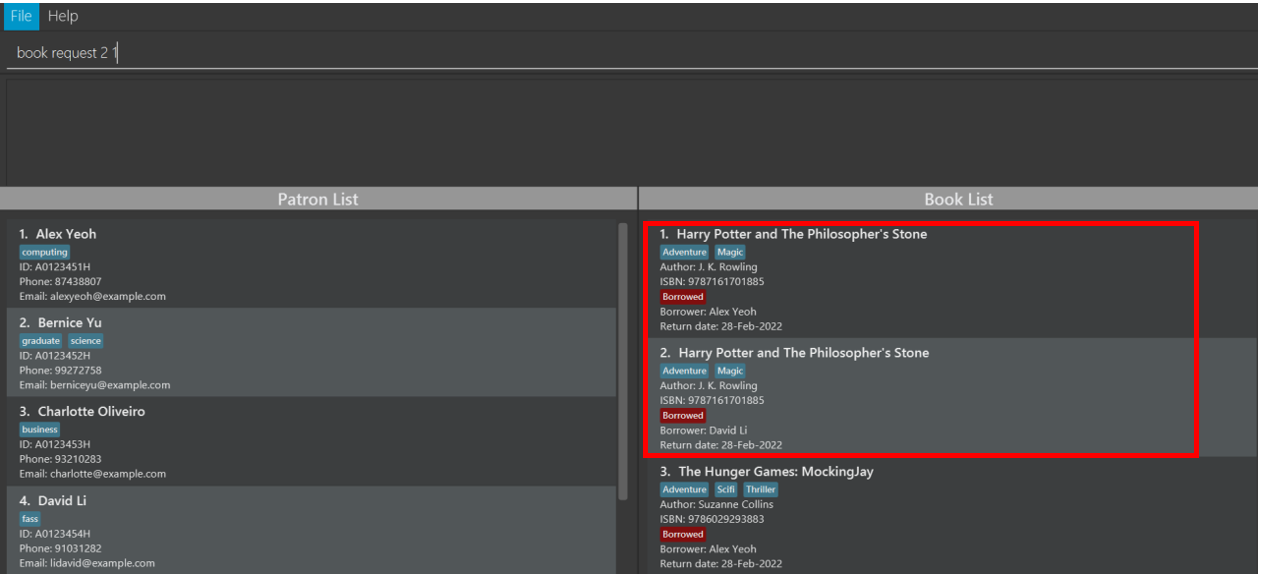
To keep track that the second patron is requesting for first book, you can enter the following command:
book request 2 1
Before entering the command, there are two books with the same isbn as the first book. Both copies of the book are already borrowed.
After entering the command, both books are labelled as requested by Bernice Yu (the name of the second patron).
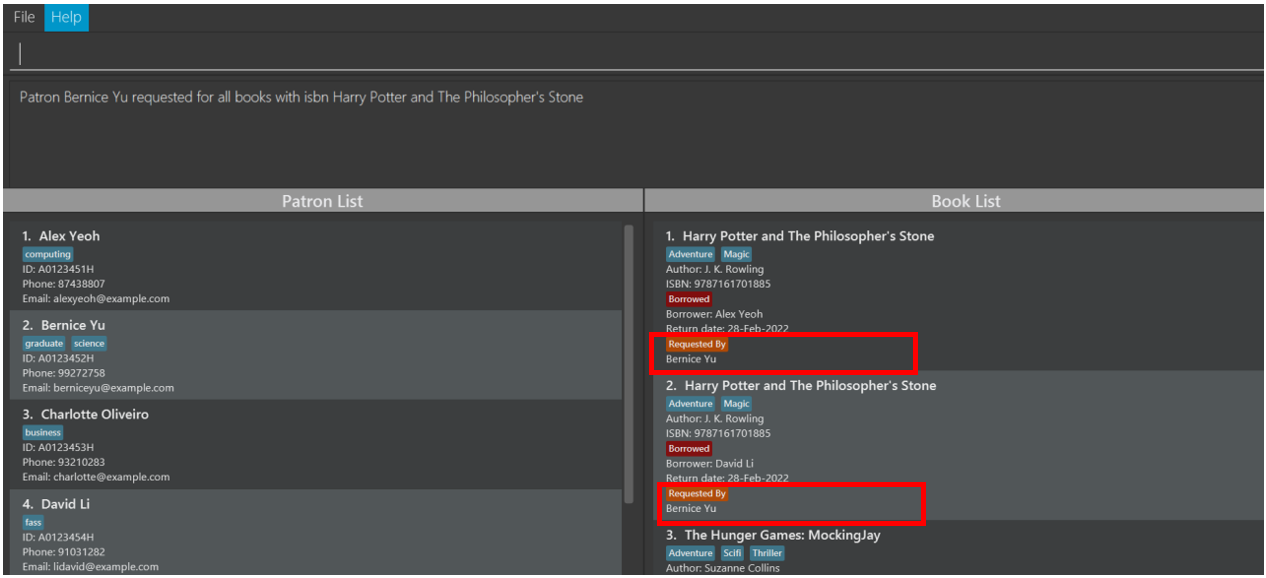
When a copy of this book becomes available later, you will be reminded to notify Bernice Yu automatically.
3.3.9. Listing all books related to a patron : book related
To list all books borrowed by or requested by a specific patron, you can enter the related command with the format shown below.
Format: book related INDEX
Notes about the related command:
-
Lists all books borrowed by or requested by a patron at
INDEX.INDEXrefers to the index number of the patron of interest, as shown in the displayed patron list. -
INDEXmust be a positive integer 1, 2, 3, … -
INDEXcannot exceed the largest index number in the displayed patron list. -
If the patron of interest did not borrow any book or request for any book, an empty book list will be shown.
Example:
To list all books borrowed by or requested by the second patron, you can enter the following command:
book related 2
This command is typically used after patron overdue command. After listing all patrons with overdue books, you can use this command to check which books are overdue by each patron.
4. FAQ
Q1: Is there any other way to exit the application without typing?
A: Yes, there is another way to exit the program, and that is by clicking the File button on the top left-hand
corner of the app. There is an exit button in the dropdown list which appear after clicking the File button.
Q2: Will the data of the books be saved if the program was not closed via the exit command or via the
method shown in Q1?
A: Yes the data will still be saved. However, to ensure a better user experience, we recommend using the exit
command as described in the user guide.
Q3: I entered the book list command but nothing has changed. Is this expected?
A: Yes, it is expected, as all the books have probably been already listed.
Q4: Why are there two separate lists for books and patrons instead of one combined list?
A: This is done so that the user can see the two lists side by side and have a clearer picture of the various patrons and books in LibTask. This also makes commands such as book related and borrow commands more efficient.
Q5: Why are the “requested by” tags removed from the books after a patron has returned that particular book?
A: Once a book has been returned and that book has been requested, a list of reminders will already be shown to the librarian. LibTask’s job is to only remind the librarians about book requests, not to notify the patrons for them, because LibTask does not have access to NUS email authentication to email the patrons. The automatic deletion of the “requested by” tag is a feature that is meant to provide convenience for the user and make them more productive because they would not need to manually input additional commands to delete the “requested by” tags.
5. Command summary
5.1. General Commands
| Function | Command Format |
|---|---|
| Show message to help page | help |
| Clear all entries | clear |
| Exit the program | exit |
| Show previous commands | u |
5.2. Patron Commands
| Function | Command Format |
|---|---|
| Add a new patron | patron add n/NAME s/ID p/PHONE e/EMAIL [t/TAG]… |
| List all patrons | patron list |
| Edit a patron | patron edit INDEX [n/NAME] [s/ID] [p/PHONE] [e/EMAIL] [t/TAG]… |
| Find a patron | patron find KEYWORD [KEYWORD]… |
| Delete a patron | patron delete INDEX |
| List patrons with overdue books | patron overdue |
5.3. Book Commands
| Function | Command Format |
|---|---|
| Add a book | book add n/NAME i/ISBN [a/AUTHOR]… [t/TAG]… |
| List all books | book list |
| Find a book | book find [n/NAME] [t/TAG] [a/AUTHOR] |
| Edit a book | book edit INDEX [n/NAME] [i/ISBN] [a/AUTHOR]… [t/TAG]… |
| Delete a book | book delete INDEX |
| Borrow a book | borrow PATRON_INDEX BOOK_INDEX RETURN_DATE |
| Return a book | return PREFIX/INDEX |
| Request a book | book request PATRON_INDEX BOOK_INDEX |
| List all books related to a patron | book related INDEX |
6. Appendix
6.1. Calculating ISBN checksum
There are two types of ISBN, 10-digit ISBNs and 13-digit ISBNs. Both types of ISBN have different ways of calculating checksums, as illustrated below. For easy testing and exploration, you can generate valid ISBNs from this website without having to perform the tedious calculations yourself to ensure its validity.
10-digit ISBN checksum
-
Step 1. For each of the 10 digits, from left to right, multiply the digit by an integer weight. The weights are descending from 10 to 1 from left to right.
-
Step 2. After obtaining the product of digit and weight for each digit, sum all the products.
-
Step 3. The 10-digit ISBN checksum is valid if the sum of products is a multiple of 11.
Example:
The checksum for an 10-digit ISBN of 0-306-40615-2 is calculated as follows:
checksum = (0 × 10) + (3 × 9) + (0 × 8) + (6 × 7) + (4 × 6) + (0 × 5) + (6 × 4) + (1 × 3) + (5 × 2) + (2 × 1) = 132
Since 132 is a multiple of 11, the above 10-digit ISBN has a valid checksum.
13-digit ISBN checksum
-
Step 1. For each of the 13 digits, from left to right, multiply the digit by an integer weight. The weight is a number alternating between 1 and 3, from left to right.
-
Step 2. After obtaining the product of digit and weight for each digit, sum all the products.
-
Step 3. The 13-digit ISBN checksum is valid if the sum of products is a multiple of 10.
Example:
The checksum for an 13-digit ISBN of 978-0-306-40615-7 is calculated as follows:
checksum = (9 × 1) + (7 × 3) + (8 × 1) + (0 × 3) + (3 × 1) + (0 × 3) + (6 × 1) + (4 × 3) + (0 × 1) + (6 × 3) + (1 × 1) + (5 × 3) + (7 × 1) = 100
Since 100 is a multiple of 10, the above 13-digit ISBN has a valid checksum.
7. Glossary
| Term | Explanation |
|---|---|
| Command-line Interface (CLI) | An interface which involves the users typing text and executing it as commands. |
| Graphical User Interface (GUI) | An interface which involves the users clicking buttons and selecting options from the menu bar. |
| Java | A programming language which was used to built LibTask. |
| International Standard Book Number (ISBN) | An international standard identification number for identifying books. |
| Patron | Visitor of the library. |
| Checksum | A method to validate the ISBN. |